RasterLab
V2.0 Live!

Professional LED wall configuration and production planning for Mac, Windows, and Linux. Spec screens, generate wiring diagrams, gear lists, and media guides all in one place.

Download for Mac App Store Download for Windows Download for Linux

macOS 12 Monterey or later  ·  Apple Silicon & Intel

What's New →

Everything you need to spec an LED show

🖥️

Screen Configuration

Build LED walls panel by panel. Set dimensions, pixel pitch, processor, redundancy, and brightness. Supports custom tile addition and configurations.

Signal & Power Planning

Auto-generated signal port assignments and power wiring diagrams using standard 6 circuit Socapex delivery. Supports most standard processors.

🔧

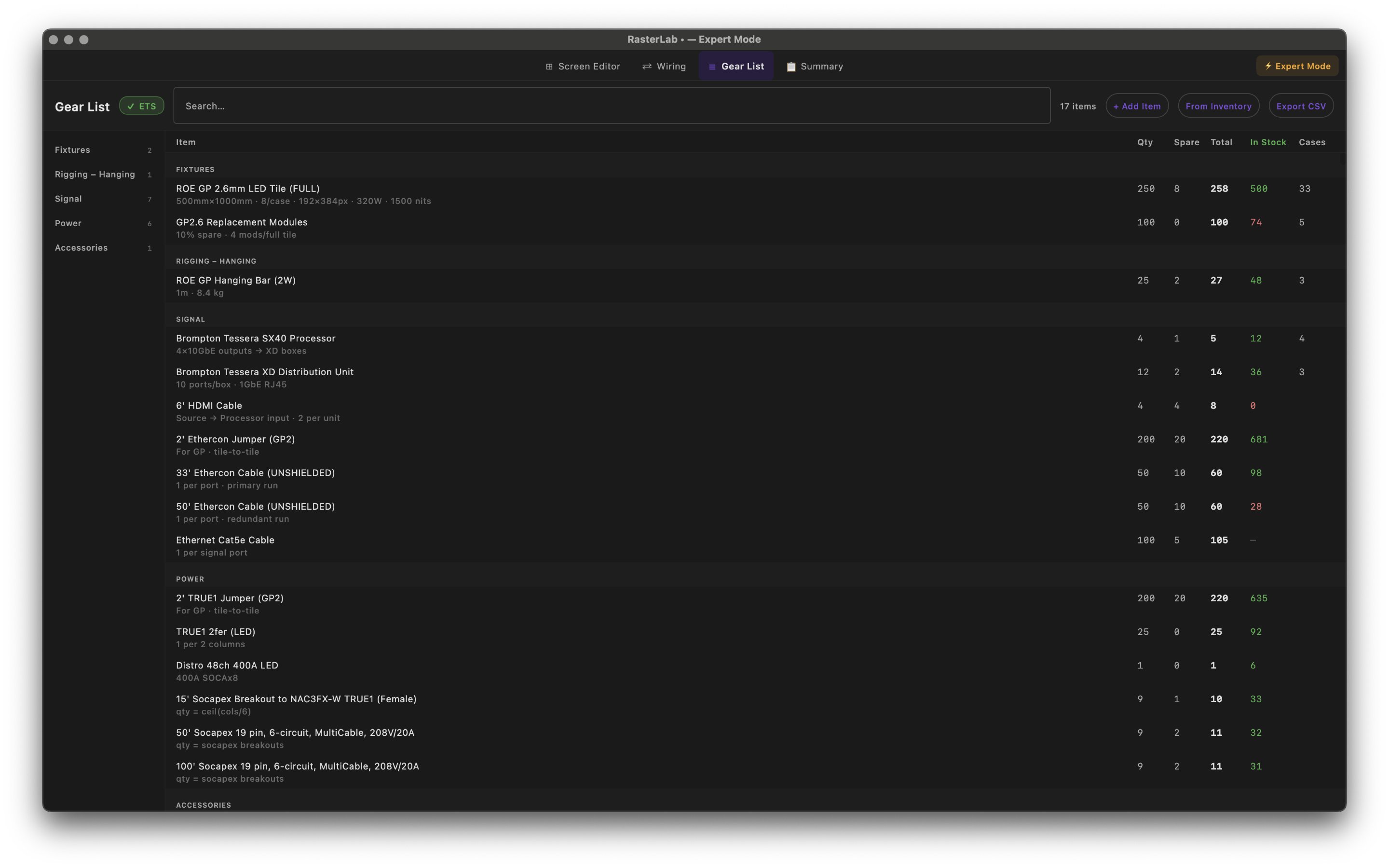
Gear List

Automatic equipment quantity calculations — processors, XD boxes, cabling, rigging, and more. Customizable templates with per-screen and per-group modes.

💻

Media Guide Export

Generate pixel-accurate media server mapping guides as PDFs. Canvas positions, raster zones, and screen coordinates ready to hand off to your media team.

📝

Grid & Summary Export

Export full-resolution screen grid images, SVG layouts, and summary PDFs. Includes JSX for After Effects and CSV for spreadsheet workflows.

📦

Inventory Tracking

Import your house inventory CSV and see in-stock quantities directly in the gear list. Know what you have before the quote goes out.

Built for the way you work

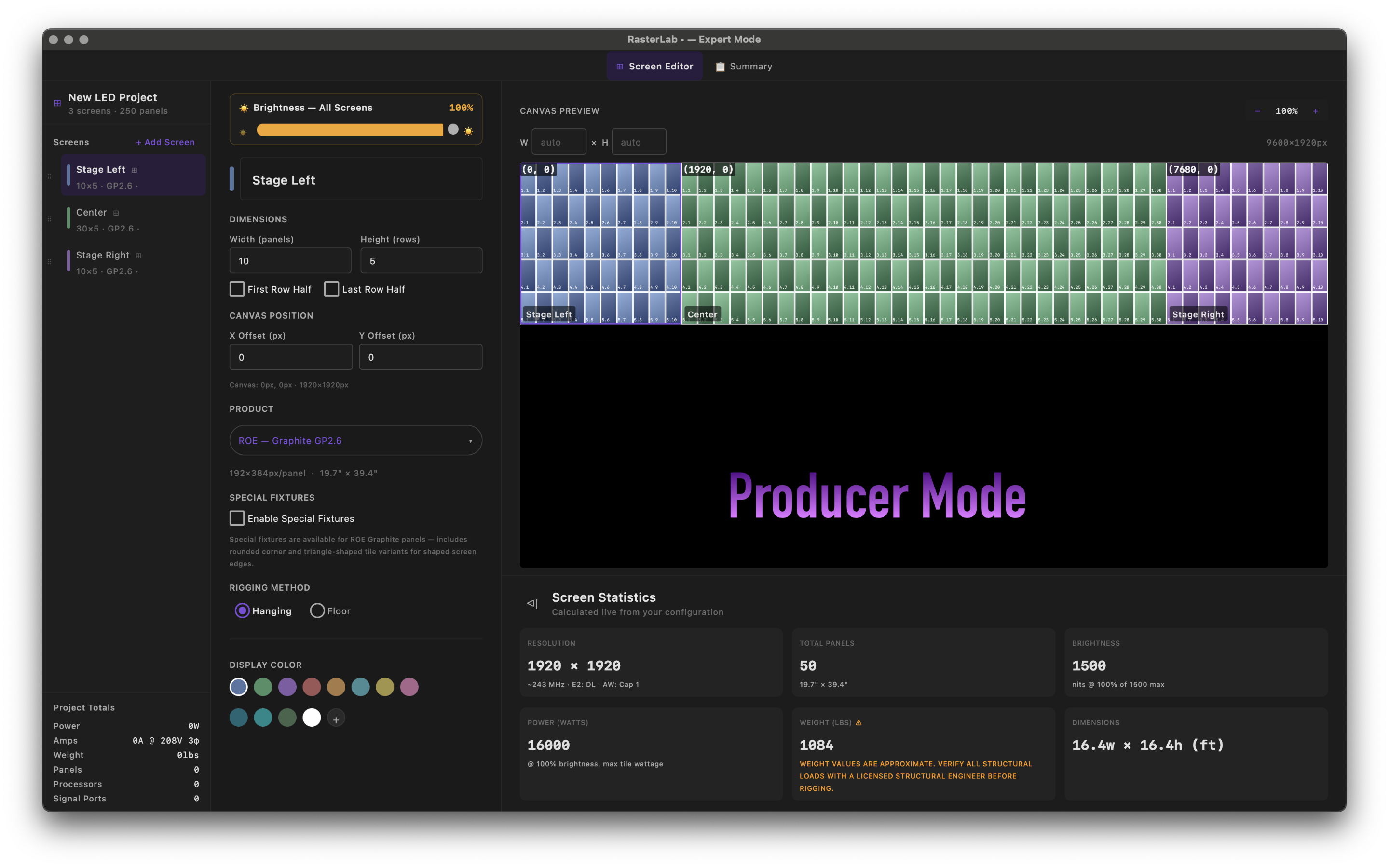
Producer Mode Canvas
Producer Mode — drag-and-drop canvas layout with live screen positioning
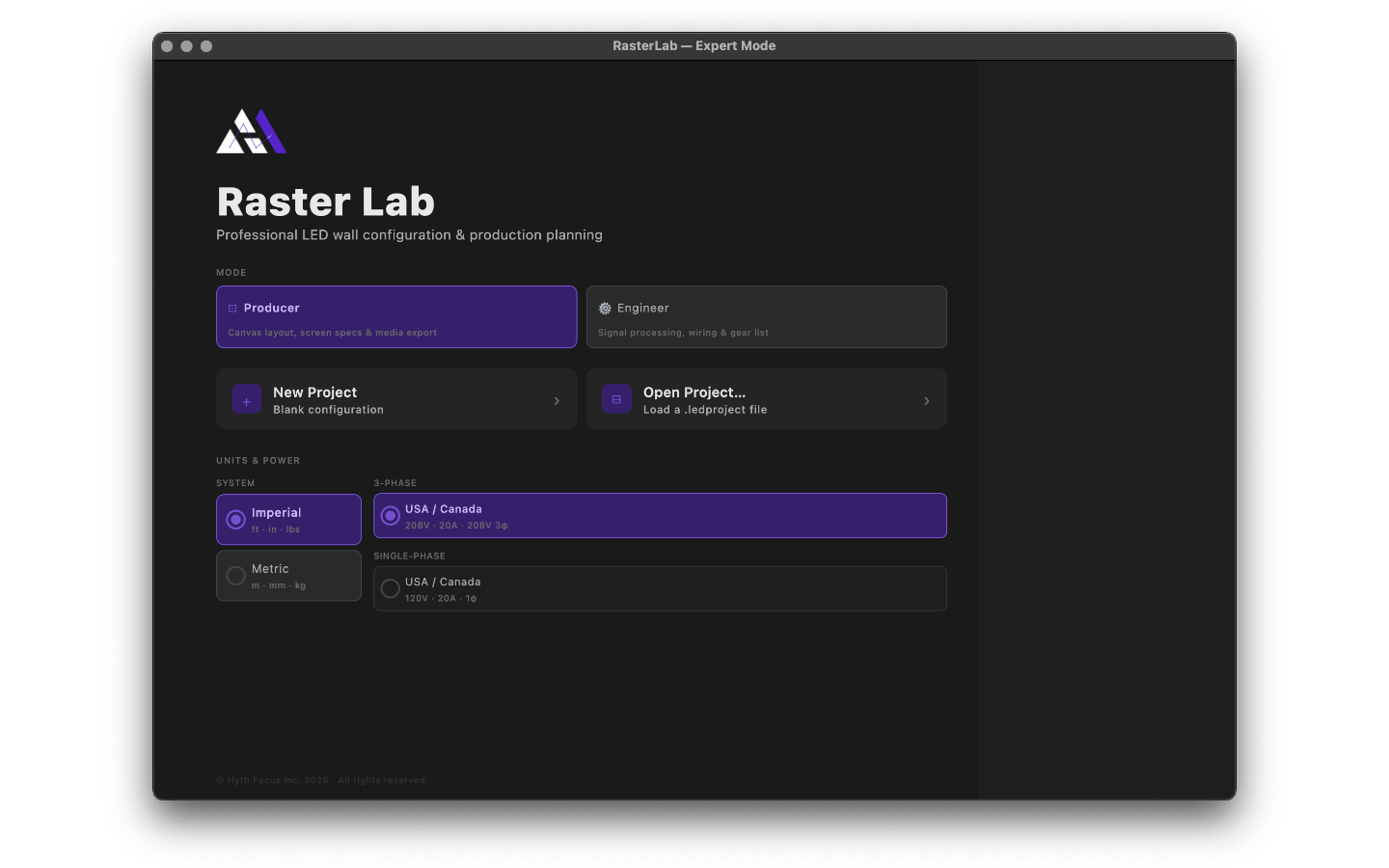
Home Screen
Home screen — mode selection and recent projects
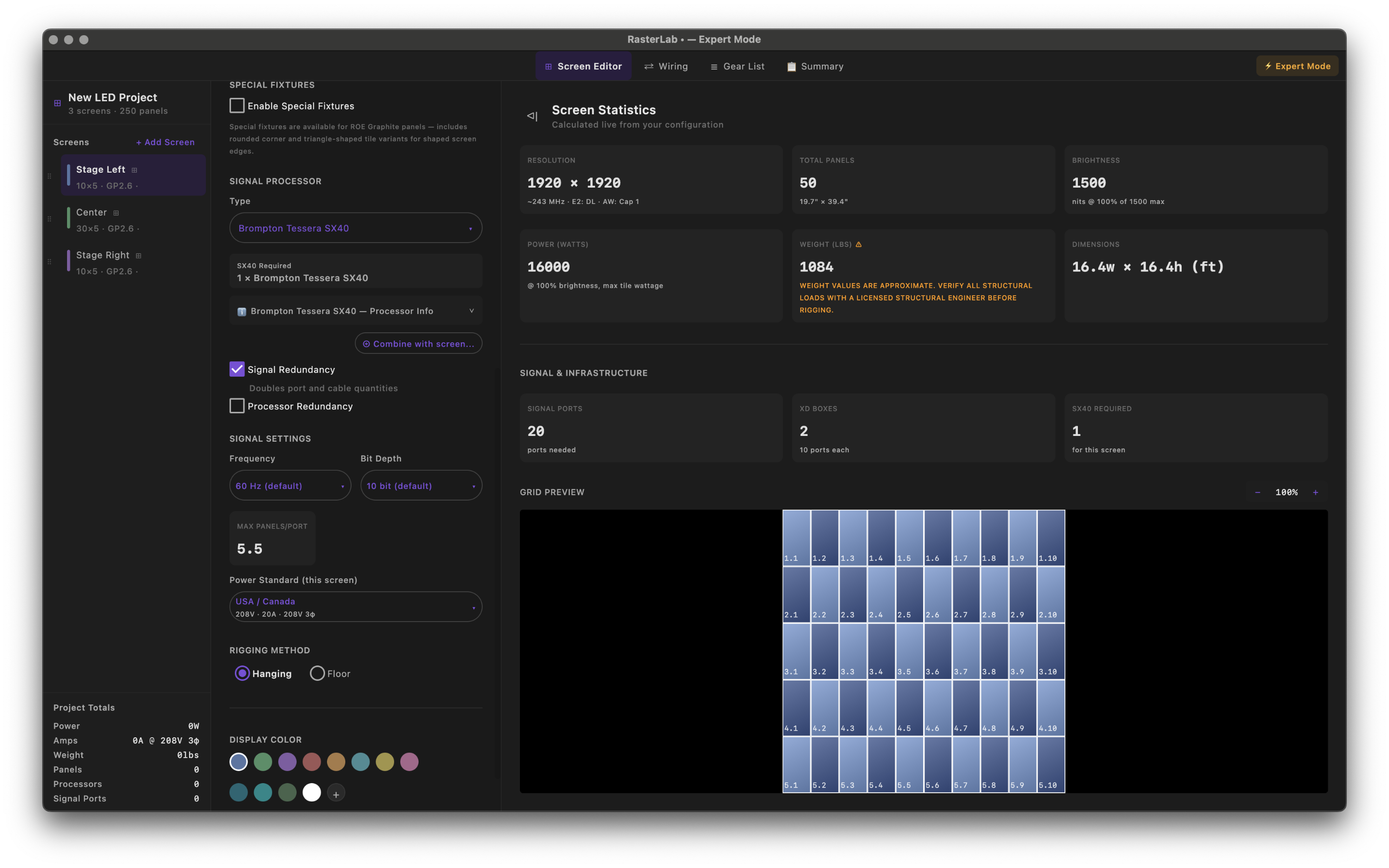
Screen Editor
Screen Editor — processor settings, canvas positioning, and screen stats
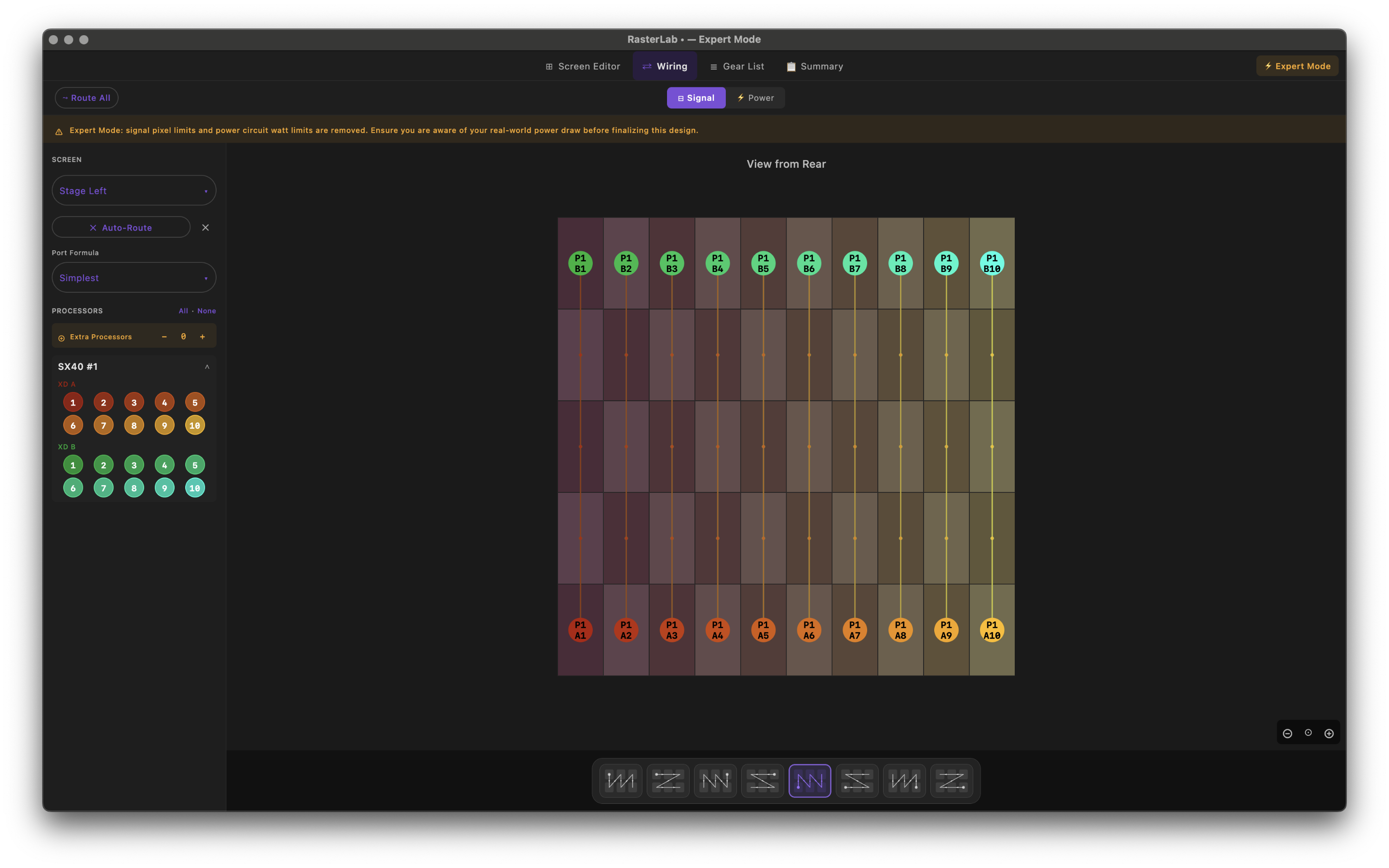
Signal Wiring Diagram
Signal wiring diagram — port assignments and chain routing
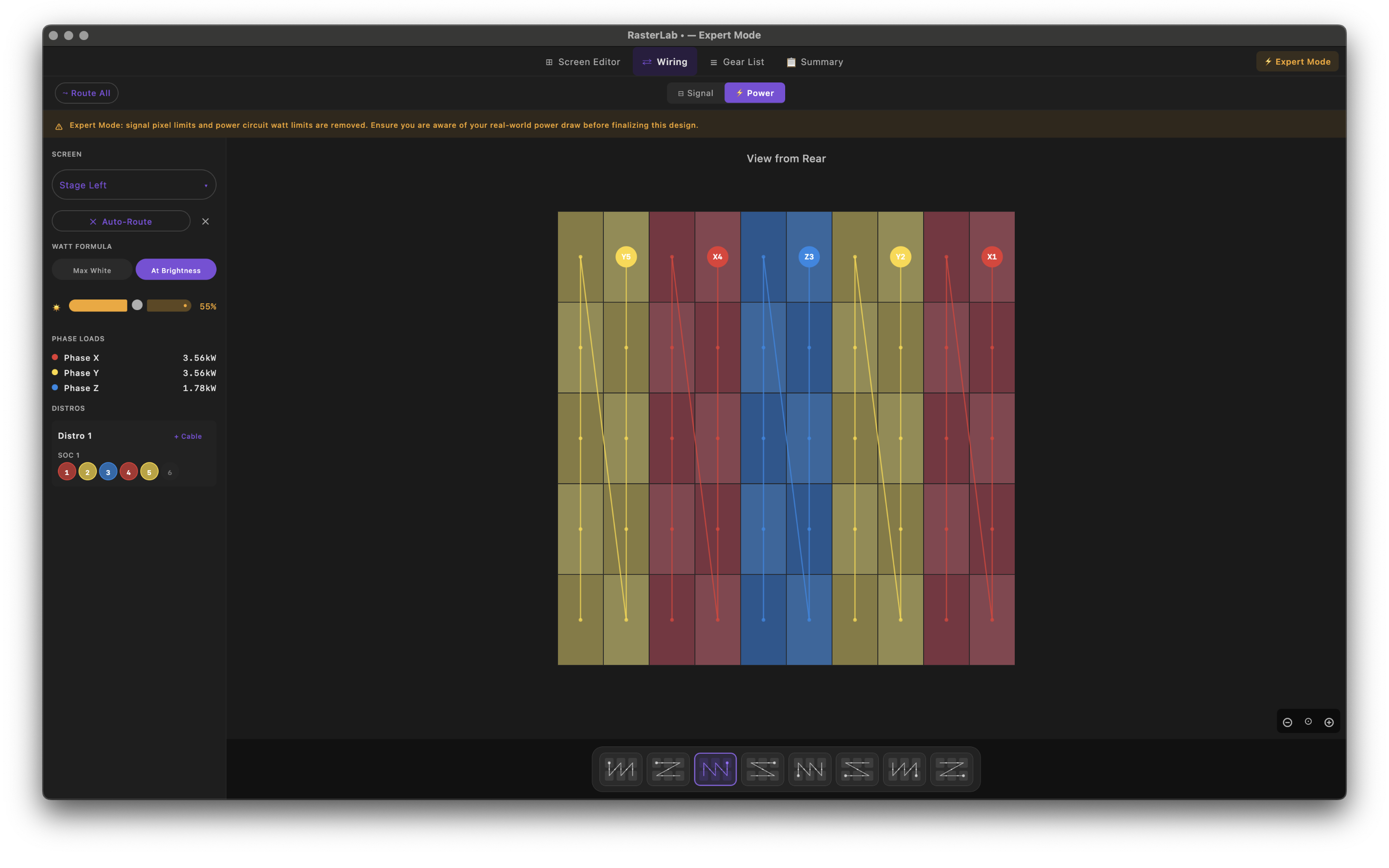
Power Wiring
Power wiring layout with Socapex and True1 distribution
Gear List
Auto-calculated gear list with inventory integration
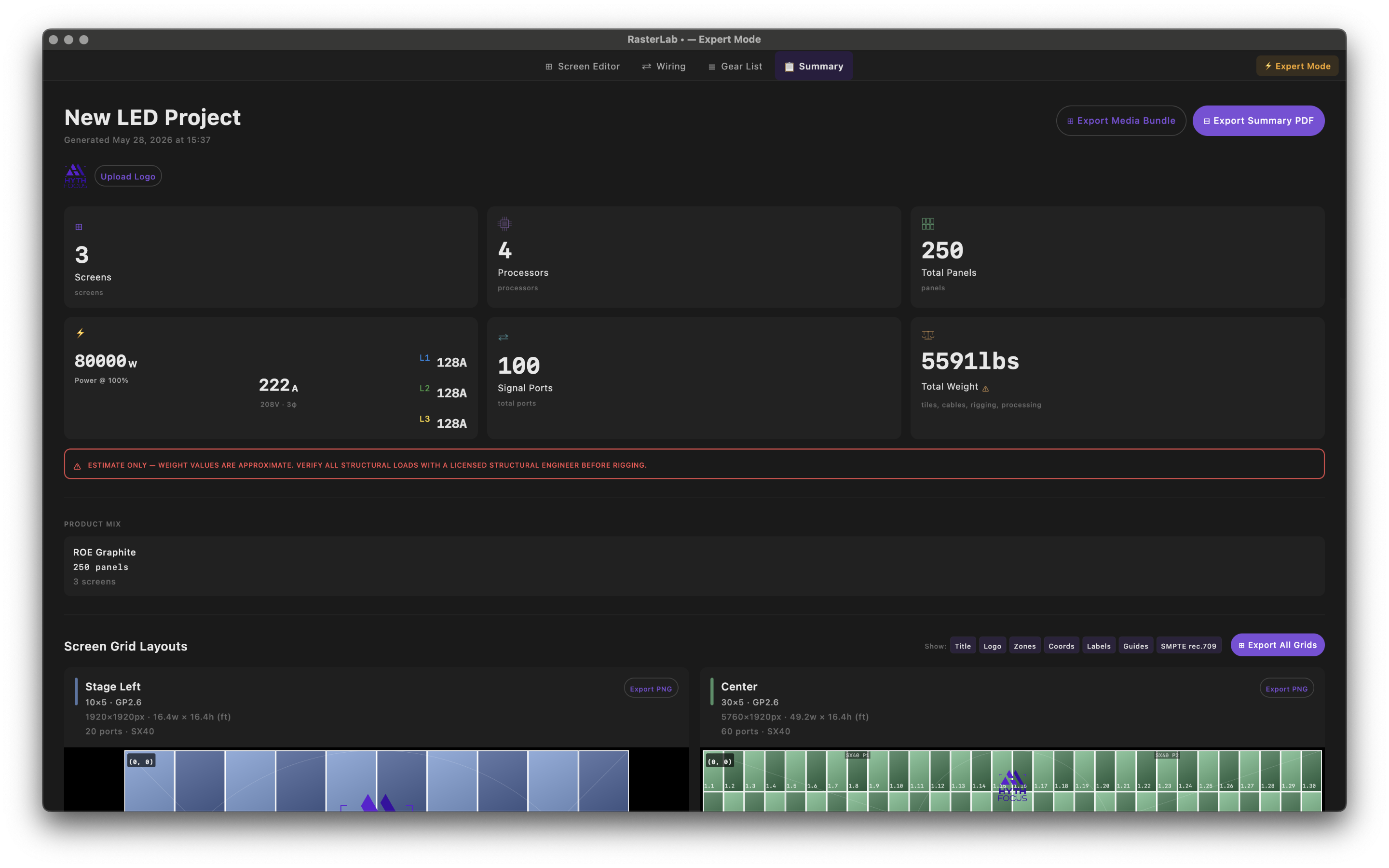
Summary Page
Project summary — totals, specs, and export options
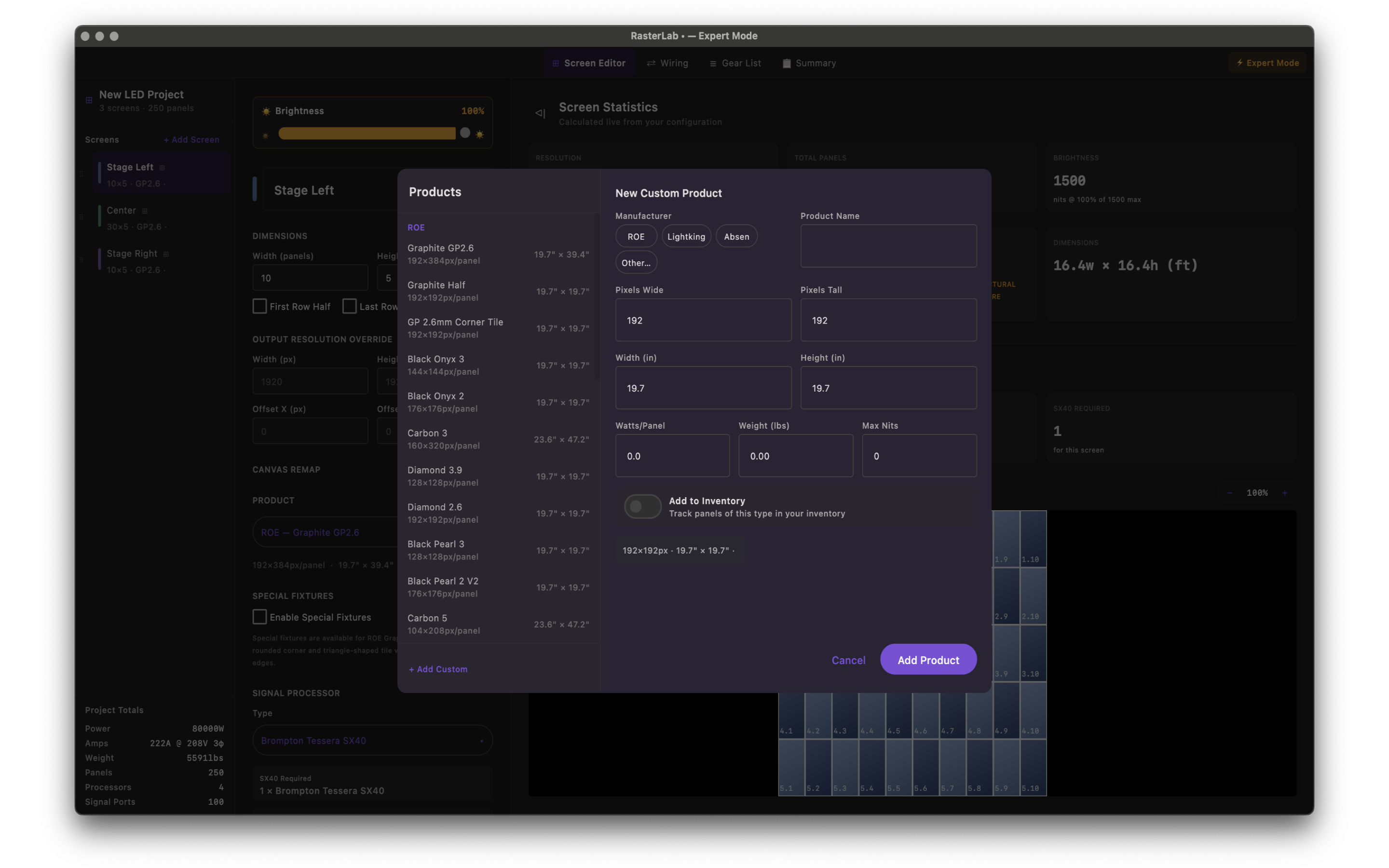
Products Dialog
Products dialog — add and manage custom LED products

Mac, Windows & Linux

macOS macOS 12 Monterey or later  ·  Apple Silicon & Intel
Windows Windows 10 or later  ·  64-bit
Linux Ubuntu 20.04+ or compatible Debian-based distro  ·  64-bit
Storage Under 120 MB
Network Not required — fully offline app

Frequently Asked Questions

Yes! RasterLab 2.0 is available for Mac, Windows, and Linux. Download the MSI installer for Windows or the DEB package for Debian-based Linux distributions directly from this page.
Yes! Our goal is to have as broad of a library as possible to make this as universally useful as possible. RasterLab offers the ability to add Custom Products through the Products > Manage Products… menu in the Taskbar. Using this system you can add all the specifications of a product you use often and RasterLab will auto-calculate just as if it were a built-in product.

Lastly, please visit the Help > Send Feedback… menu, select Product Request, and you can submit any of your custom products or simply detail the name and how to find it (including a URL to the specification documentation, this helps us verify quicker). We will register the new product as a built-in product in a future update. Your help here is greatly appreciated!
Absolutely! You can utilize Expert Mode to unlock a whole range of settings and remove limits. Be careful and make sure you understand power and data limits. RasterLab and its creator are not responsible for incorrectly wired equipment.

Please also help us learn how to make this tool better for everyone by visiting the Help > Send Feedback… menu.
You bet! Make sure to check the changelog for app updates as updates are posted here quicker than on the App Store. Feel free to submit a bug report using the Help > Send Feedback… menu in the Taskbar. If we aren't already aware of the bug, we'll make sure it's fixed in the next patch.

Start planning your next LED show.

Free download. No account required. Works offline.

Download for Mac App Store Download for Windows Download for Linux

Verify Your Download

A checksum lets you confirm that the file you downloaded is exactly what we published — it hasn't been corrupted or tampered with. Each file produces a unique SHA-256 fingerprint. If the values match, your download is authentic.

1 · Open Terminal

Terminal is in Applications → Utilities → Terminal, or search for it with Spotlight (⌘ Space).

2 · Run this command

shasum -a 256 ~/Downloads/RasterLab2.0.dmg

3 · Compare the result

The hash Terminal prints should match:

4e1c40116b19a93b8a59166beac5b606e80037393f064ff85419f6888837966e

Match = authentic. Mismatch = delete and re-download.